
The Difference Between Your Modem, Your Router, and Your ISP's Network
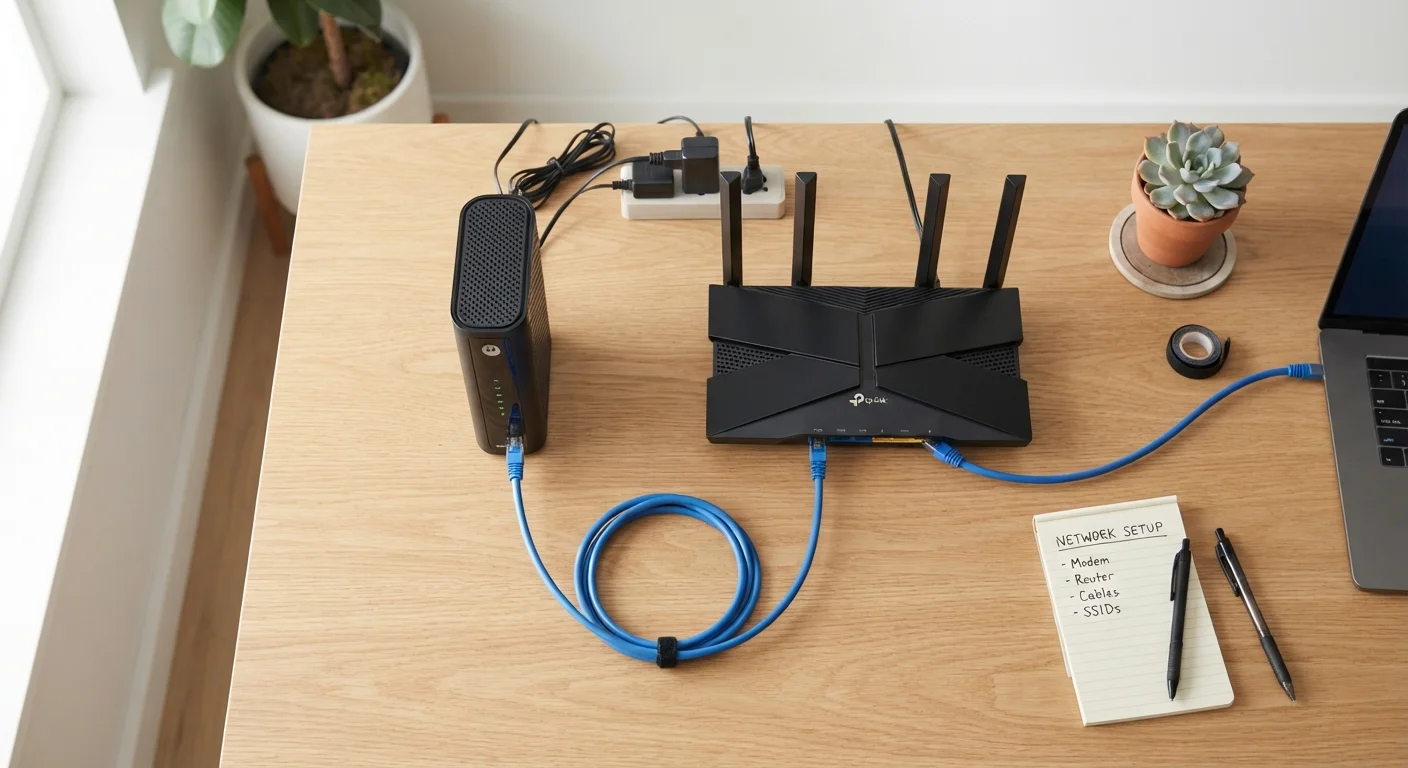
Photo credit: ArticlesHaven.net
In this article
These three things work together to get you online — but each one is a separate link in the chain. Here's what each one actually does.
Key Takeaways
- Your ISP's network delivers internet signal to your home - you have no direct control over it.
- The modem converts that signal into a usable connection; it's the gateway between your ISP and your home network.
- The router creates and manages the local network inside your home, including your Wi-Fi.
- Many ISPs rent you a combined modem-router unit (a gateway), but it's still two functions in one box.
- Slow Wi-Fi in one room is usually a router issue, not an ISP or modem problem.
- Understanding which device is causing trouble saves time when troubleshooting or calling support.
The Chain That Gets You Online
When your internet isn't working - or isn't working well - knowing which part of the system is responsible makes the difference between a five-minute fix and an hour-long support call. Most homes have three distinct layers at play: the ISP's network, a modem, and a router. They're separate components with separate jobs, and problems in one don't always mean problems in another.
Before you can evaluate an internet plan or troubleshoot a speed issue, it helps to understand what each piece does. The confusion is understandable - providers often bundle equipment together, use jargon interchangeably, and leave consumers guessing. This guide sorts it out.
~$10-15/mo
Typical ISP equipment rental fee
Many US ISPs charge a monthly fee to rent a modem or gateway; purchasing compatible equipment outright can eliminate this recurring cost.
2 in 3
Households using ISP-provided equipment
A significant share of broadband subscribers use the modem or gateway provided by their ISP rather than purchasing their own, according to industry estimates.
30-100+ ft
Typical indoor Wi-Fi range per router
Standard consumer routers vary considerably in range and signal penetration depending on construction materials and interference sources.
Your ISP's Network: The Source
Your ISP owns and operates the physical infrastructure that brings internet connectivity to your home. Depending on the technology type - fiber, cable, DSL, or fixed wireless - that infrastructure might be fiber-optic lines, coaxial cable, copper phone lines, or a radio signal from a nearby tower. See how each connection type compares in speed and reliability for a deeper breakdown of the trade-offs.
This layer is entirely outside your control. The speeds, reliability, and availability of the ISP's network are determined by the provider's infrastructure investment in your area. That's why your neighbor may have access to providers or speeds that you don't - even if you live on the same street.
ISP Network Issues Aren't Always Obvious
Outages or signal degradation from the ISP side don't always knock out your connection entirely. You might experience slow speeds, intermittent drops, or high latency even when your modem shows a connection. Many ISPs provide an outage map or status page you can check before spending time troubleshooting your own equipment.
The Modem: Where the ISP Hands Off to You
The modem sits at the boundary between your ISP's network and your home. Its job is to translate the signal coming from your ISP - whether that's a cable signal, a DSL signal over a phone line, or an optical signal on fiber - into a standard internet connection your home equipment can use.
Without a modem, the signal arriving at your home has no way of becoming usable internet. With one, you get a single wired internet connection at the modem's output port. That one connection can only serve one device directly - which is where the router comes in.
Check Modem Compatibility Before You Buy
If you're considering purchasing your own modem to avoid rental fees, confirm with your ISP that the specific model is approved for use on their network and supports your subscribed speed tier. An incompatible or lower-spec modem can artificially cap your plan speeds. Most ISPs publish a list of approved devices on their support pages.
A blinking or absent signal light on your modem is usually the first indicator that the issue is upstream - either with the modem itself or with your ISP's network reaching your address.
The Router: Your Home Network Manager
The router takes the single internet connection from the modem and distributes it to all the devices in your home - phones, laptops, smart TVs, tablets, and anything else connected. It manages traffic between those devices and the internet, assigns local IP addresses, and broadcasts your Wi-Fi network.
Your router is also the device most responsible for the Wi-Fi experience in different rooms of your home. Slow speeds far from the router, dead zones, or dropped connections during video calls are almost always router-related - not a sign that your ISP plan is too slow. Upgrading your plan won't fix a coverage problem; repositioning or replacing your router will.
When comparing plans, understanding what speed tiers actually deliver day-to-day helps you avoid paying for bandwidth your router or home setup can't fully use.
Gateway Devices: When Modem and Router Are One Box
Many ISPs provide a single device called a gateway that combines the modem and router into one unit. This is convenient - one box, one power cord, one device to manage. But it's still performing both functions, and the distinction still matters for troubleshooting.
If your gateway's Wi-Fi is slow in parts of your home, that's a routing/coverage issue. If the gateway shows no internet connection at all, the problem is likely the modem side - or your ISP's signal to your home. Before signing up for a new internet plan, it's worth checking whether the ISP's equipment rental fee is included or added monthly - buying your own compatible devices often pays off over time.
“Consumers often blame their Wi-Fi when the real issue is equipment placement or an underpowered router - and they upgrade their internet plan when what they actually needed was a better router.”
— FCC Consumer Broadband Education Resources, Federal Communications Commission guidance on home broadband troubleshooting
Frequently Asked Questions

Author
Articles Haven Editorial Contributor
Articles Haven Editorial Team is the collective byline for our editorial team and contributor network. Articles published under this byline or an editorial pen name are researched, written, and reviewed according to our editorial standards for clarity, consistency, and independence before publication.
View all articles →