
How to Run an Internet Speed Test That Actually Reflects Your Connection
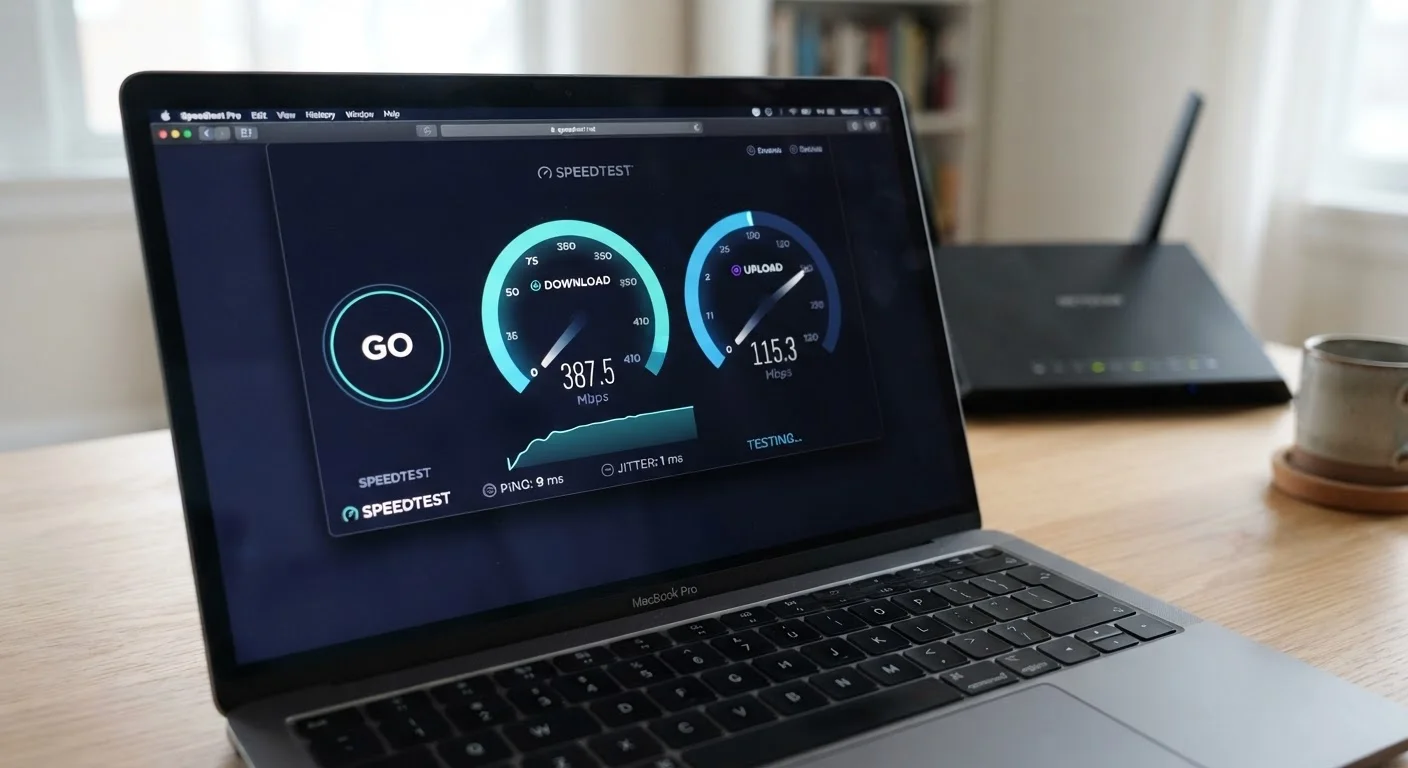
Photo credit: ArticlesHaven.net
In this article
A poorly run speed test can be misleading. Here's how to test your connection in a way that reflects what you're actually getting.
Key Takeaways
- Testing over Wi-Fi often produces lower speeds than your connection actually delivers - use a wired connection when possible.
- Close all background apps and pause downloads before running any speed test.
- Run multiple tests at different times of day for a more representative picture.
- Download speed, upload speed, and latency all matter - don't focus on one number alone.
- Comparing results to your plan's advertised speed helps you decide whether to troubleshoot or contact your provider.
Why Most Speed Tests Give You Incomplete Information
Speed tests are useful, but the default way most people run them - on a phone, over Wi-Fi, while Netflix plays in another tab - produces a number that reflects several things at once, not just your internet service. Understanding the variables that distort results is the first step toward running a test you can actually rely on.
The most common sources of error are: testing over Wi-Fi instead of a wired connection, background device activity consuming bandwidth, and testing only once at a convenient time. Each of these can produce a reading that's meaningfully lower than what your provider is actually delivering - or, in some cases, mask a real problem by testing at an unusually quiet moment on the network.
Ethernet cable
Connects your test device directly to the modem, eliminating Wi-Fi variables from the result.
Web-based speed test tool (e.g., fast.com or speedtest.net)
Measures download speed, upload speed, latency, and sometimes packet loss from your browser.
Notepad or spreadsheet
Records multiple test results over time so you can spot patterns rather than relying on a single reading.
Your connection type also shapes what to expect. Cable and DSL connections on shared network segments can vary more by time of day than fiber, which typically delivers more consistent throughput. For a full breakdown of how connection types behave differently, see fiber, cable, DSL, and fixed wireless compared.
Wired vs. Wi-Fi Results Are Not Interchangeable
A speed test run over Wi-Fi measures the combined performance of your connection and your wireless network - not your internet service alone. If you're trying to verify what your provider is delivering, always test with a device plugged directly into your modem via an Ethernet cable. Wi-Fi interference, router age, and distance from the router can all reduce your measured speed significantly, making the result an unfair comparison against your plan's advertised rate.
Running the Test and Reading Your Results
Follow the steps below to run a speed test that controls for the most common distorting variables. Once you have results in hand, the numbers need some context to be actionable.
What you will need
Connect your device directly to the modem
Plug one end of an Ethernet cable into your modem's LAN port and the other into your laptop or desktop. If you only have a router and modem combo unit, use one of its LAN ports. Temporarily disable Wi-Fi on the device so traffic routes exclusively through the wired connection.
Pause or disconnect all other devices
On your router's admin page or by physically unplugging other devices, reduce active network users to just your test device. Smart TVs, phones, tablets, and game consoles often maintain background connections. Even a small background transfer can meaningfully skew results on a mid-tier plan.
Close background apps on the test device
Shut down cloud storage sync (Dropbox, OneDrive, Google Drive), browser tabs with video, OS update processes, and any software that auto-updates in the background. On Windows, check Task Manager; on macOS, use Activity Monitor. You want the test device itself consuming as little bandwidth as possible.
Open a speed test tool and run the test
Navigate to a reputable browser-based speed test. Click the start or go button and allow the test to complete fully - typically 30-60 seconds. Note your download speed (Mbps), upload speed (Mbps), and ping/latency (ms). These three figures together give you a meaningful snapshot. For a deeper explanation of what latency and related metrics mean for everyday use, see latency, jitter, and packet loss explained.
Compare results to your plan's advertised speeds
Pull up your provider's plan documentation and compare the advertised download and upload speeds to your test averages. A result within roughly 80% of the advertised figure is generally considered acceptable by industry norms, though this varies by provider and connection type. Consistently lower results - especially during off-peak hours - may indicate an issue worth investigating.
Repeat tests at different times and log the results
Run the same process at two or three different times over a few days - morning, afternoon, and evening. Record each result. Consistent underperformance at all hours points to a provisioning or equipment issue. Underperformance only during evening hours is more likely a congestion issue tied to your connection type or local network infrastructure.
Run Tests at Peak and Off-Peak Hours
Speeds on shared network technologies like cable can drop noticeably during evening hours when many households are online simultaneously. Running tests at different times - say, mid-morning and around 8 p.m. - gives you a realistic range rather than a single flattering snapshot. This context is especially useful when evaluating whether congestion is causing a problem. See how advertised speeds compare to real-world performance for broader context on why gaps occur.
If your results consistently fall well below the advertised rate - even after controlling for Wi-Fi and background usage - it's worth contacting your provider with your logged data. Providers often have tools to run diagnostics remotely, and persistent underperformance can sometimes be traced to a faulty modem, outdated router firmware, or an issue on the line outside your home. Understanding how plan speed compares to real-world performance can help you frame the conversation accurately. And if you're evaluating whether your current speed tier suits your household's actual usage, how speed tiers affect everyday use is worth a read before you consider upgrading.
Don't Test While Other Devices Are Active
Streaming video, software updates, smart-home devices, and cloud backups all consume bandwidth in the background - sometimes without any visible indication. Even one active device can drag your measured speed down enough to make a healthy connection look like a problem. Before testing, pause or disconnect other devices on the same network to isolate your results.

Author
Articles Haven Editorial Contributor
Articles Haven Editorial Team is the collective byline for our editorial team and contributor network. Articles published under this byline or an editorial pen name are researched, written, and reviewed according to our editorial standards for clarity, consistency, and independence before publication.
View all articles →